
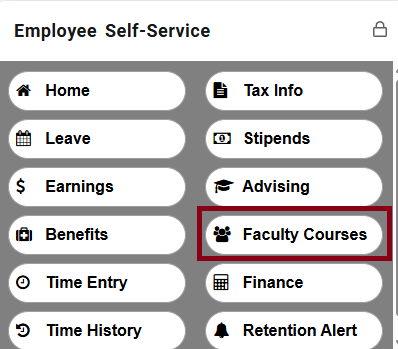
From the mySCC homepage, click on the button for Faculty Courses in the Employee Self-Service card.
The Faculty page will open with a list of your classes visible. Click on one of your classes, then click the Attendance tab.
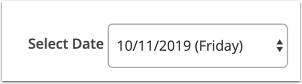
Once you are on the Attendance tab, make sure that the appropriate date appears in the Select Date field.
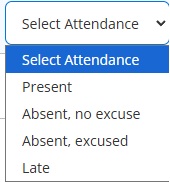
Next to each student’s name is the Select Attendance menu. Click that menu to open the dropdown. Pick the correct response in the dropdown that reflects that student’s attendance for that day. Choices are automatically saved.
If you would like to record a comment about a specific student’s attendance, click the comment icon next to the Select Attendance menu.

A comment window will open. Enter your comment (up to 50 characters) and click Save.